Campañas de Email
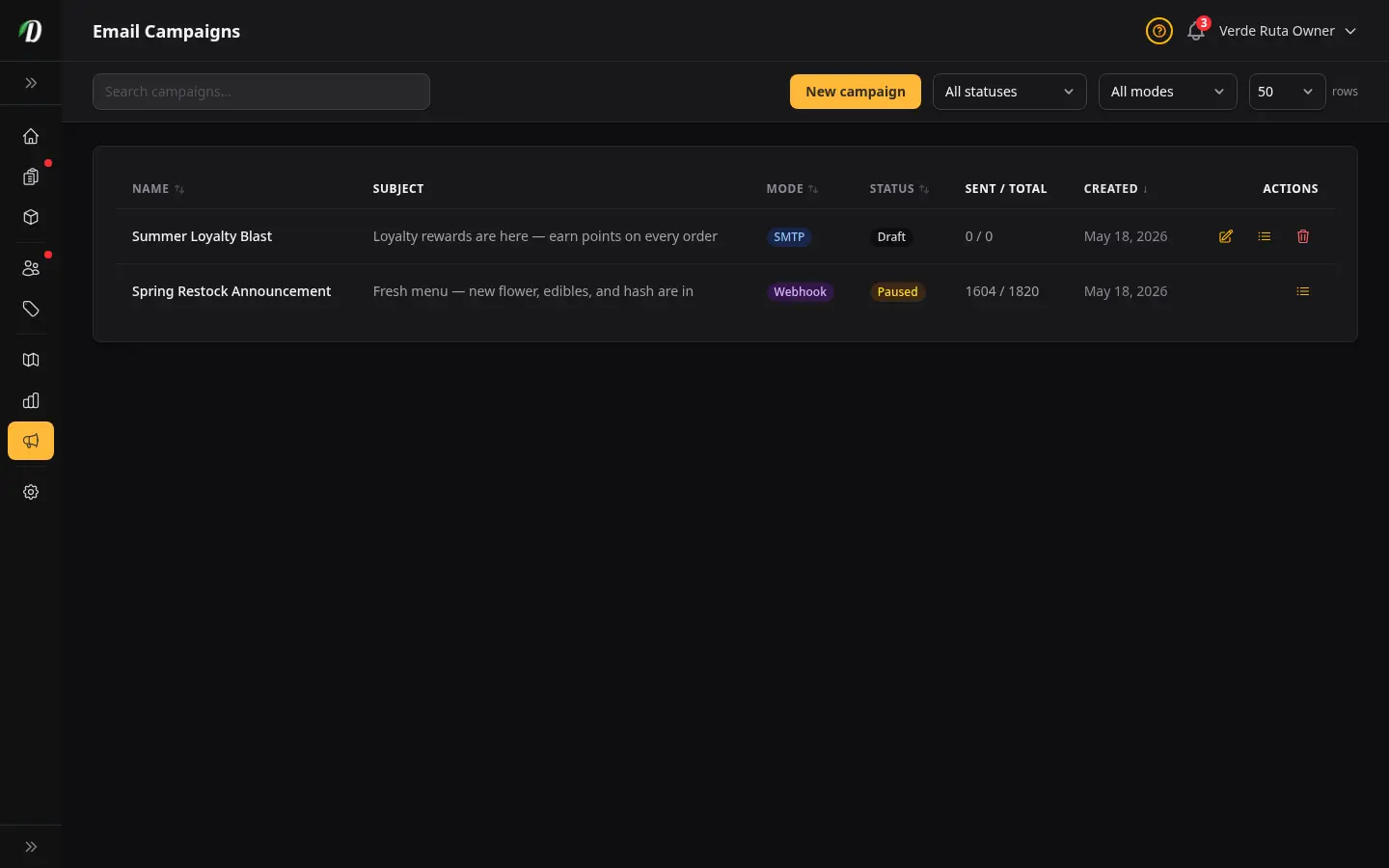
Envía campañas de email a tus clientes y contactos. Previsualiza el número de destinatarios en tiempo real antes de enviar y haz seguimiento de envíos, errores y pausas al momento.
Inicio Rápido
- Abre Marketing → Campañas de Correo.
- Crea o importa una lista de contactos en Listas.
- Haz clic en Nueva Campaña, elige un modo (SMTP o Webhook), escribe tu correo y elige tu lista.
- Pulsa Enviar Ahora. La página redirige a la vista de estadísticas de la campaña, donde puedes ver el progreso en tiempo real.
Clientes vs Prospectos
Tu audiencia se divide en dos grupos. La división importa porque cada grupo necesita una forma diferente de recibir correo.
- Clientes son personas que te compraron — incluido el checkout de invitado (correo en el pedido, sin cuenta en la tienda). Puedes enviarles correo a través de tu propio servidor SMTP.
- Prospectos son personas que has recopilado pero que aún no han comprado. Los prospectos deben enviarse a través de un webhook a un proveedor externo que gestiona la reputación de envío por ti.
También Incluir a Todos mis Clientes
En el formulario de la campaña, activa También incluir a todos mis clientes para sumar compradores registrados y compradores invitados a tu lista. Los compradores invitados son quienes pagaron sin crear una cuenta — usamos el correo del pedido.
La vista previa de la audiencia muestra cuántos están registrados, cuántos son invitados y cuántos se omiten porque se dieron de baja. Las direcciones dadas de baja nunca se envían.
¿Necesitas un correo uno a uno en lugar de un envío masivo? Búscalo en la Bandeja de entrada — los compradores invitados aparecen bajo Iniciar un correo nuevo con la etiqueta Comprador invitado.
Modo SMTP — Para tus Clientes
El modo SMTP usa la cuenta de correo de tu tienda para enviar. Configura SMTP primero en Configuración → Dominio y Correo. SMTP es solo para clientes, porque los clientes confían en el correo que viene de tu propia dirección.
Modo Webhook — Para Prospectos
El modo Webhook entrega cada destinatario a tu proveedor de correo externo. Estableces la URL en cada campaña — elige Webhook como modo de envío e ingresa la URL de tu endpoint. Diferentes campañas pueden usar diferentes webhooks. Los prospectos siempre deben pasar por un proveedor de webhook para que los rebotes y quejas no dañen la reputación de tu tienda.
Clave de firma
Generamos una clave de firma la primera vez que guardas una campaña con webhook, para que tu endpoint pueda verificar que cada solicitud realmente vino de nosotros. Usa Reveal para mostrarla, Copy para pegarla en tu proveedor, y Regenerate si alguna vez se expone — regenerarla hace que la clave anterior deje de funcionar de inmediato, así que actualiza tu endpoint al mismo tiempo.
Cuándo Usar SMTP vs Webhook
| Si estás enviando a | Usa este modo |
|---|---|
| Personas que te compraron | SMTP |
| Personas que aún no han comprado | Webhook |
| Una mezcla de ambos | Webhook (más seguro para la reputación) |
Subir tu Primera Lista
Abre Listas, haz clic en Nueva Lista y sube un CSV con un correo por fila. La primera columna debe ser el correo, con columnas opcionales para nombre y apellido. Eliminamos duplicados a medida que importamos.
Listas Inteligentes: Segmentos de Clientes Activos
Una Lista Inteligente guarda reglas para clientes en lugar de un CSV fijo. Se actualiza cuando cambian las compras o las preferencias del cliente y aparece en el selector de campañas con la insignia Lista Inteligente. Úsala para clientes que compraron de una categoría en los últimos 90 días, para los que más gastaron en los últimos 180 días o para clientes que dejaron de comprar.
Las Listas Inteligentes permanecen activas hasta el lanzamiento. La vista previa de un borrador puede cambiar cuando llegan nuevos pedidos. Una campaña programada evalúa la lista cuando comienza el envío, no cuando se programa. Al comenzar el envío, DabDash fija los destinatarios en una instantánea de esa campaña; pausar, reanudar o editar la lista después no agrega destinatarios a una campaña que ya comenzó.
Clientes inactivos y reactivación
- Inactivos 90 días: clientes que compraron antes pero cuya compra más reciente fue hace más de 90 días.
- Inactivos 180 días: un grupo con más tiempo sin comprar para una oferta de regreso o un recordatorio de productos.
- Inactivos 365 días: clientes que no regresaron durante un año completo y pueden necesitar una presentación renovada de tu tienda.
Las reglas por categoría usan la categoría actual del producto al evaluar pedidos históricos. Si un producto cambia de categoría, una compra anterior puede aparecer bajo la nueva categoría; considera estos segmentos como basados en la taxonomía actual salvo que tus datos guarden la categoría histórica.
Redactar una Campaña
Haz clic en Nueva Campaña. Dale un nombre, escribe un asunto y escribe el cuerpo. Puedes arrastrar y soltar imágenes directamente en el editor — las subimos y alojamos automáticamente. Usa el botón Enviar Prueba antes de publicar, para ver cómo se ve tu correo en tu propia bandeja de entrada.
Arte de folleto para tu campaña
Pídele arte de folleto a Dabby y lo creará con las fotos reales de tus productos, en los colores de tu tienda, y lo colocará en el hueco de imagen de la campaña. Dile de qué trata el envío — «reposición de septiembre, ambiente otoñal» — y parte de ahí.
Necesitas tu propia clave de imágenes conectada en Ajustes → Dab AI. Cada imagen se cobra a esa clave, no a nosotros, así que una tienda sin clave recibe un aviso claro en lugar de un folleto.
El arte no lleva ninguna palabra. Cada titular, precio y botón sigue siendo texto real dentro del correo, así que se lee bien, se traduce con el resto de tu campaña y sigue teniendo sentido si alguien tiene las imágenes desactivadas.
¿Quieres que se parezca a los folletos que ya envías? Guarda algunos de tus folletos anteriores en tu biblioteca de medios y pide a Dabby que los guarde como tu estilo de folleto. Todo lo que diseñe después seguirá ese ambiente y esa composición — nunca su texto ni sus logotipos.
Tu Puntuación de Bandeja de Entrada
Mientras escribes el asunto y el cuerpo, una tarjeta de Puntuación de Bandeja de Entrada se actualiza en vivo junto al editor. Revisa lo que hace que los proveedores de correo marquen un mensaje como spam — asuntos en mayúsculas, palabras sospechosas, falta de personalización, demasiados enlaces, y más — y puntúa tu borrador de 0 a 100.
Tu puntuación debe ser 80 o más antes de poder enviar o programar. Una campaña por debajo de 80 se guarda bien como borrador, pero Enviar y Programar se bloquean hasta que la subas. Debajo de la puntuación, consejos explican exactamente qué corregir — trabaja en ellos y el número sube mientras escribes.
La puntuación en vivo es una revisión rápida. Al enviar también ejecutamos una revisión de spam más profunda, así que una campaña que parecía lista aún puede necesitar un ajuste pequeño — el mensaje de error al Enviar te dice exactamente qué cambiar.
Límites de Envío Explicados
Los límites de correo protegen tu reputación de envío. Enviar demasiado rápido parece spam para los proveedores de correo.
- SMTP usa de forma predeterminada 1 por minuto y 30 por hora.
- Los valores predeterminados de Webhook son más altos porque tu proveedor gestiona el ritmo.
- Puedes bajar el límite, pero no puedes subirlo más allá del techo seguro.
Bajas y Cumplimiento
Cada correo que enviamos incluye un enlace de baja de un clic. Eliminamos la dirección de futuras campañas automáticamente — no tienes que hacer nada. Esto te mantiene en cumplimiento con las leyes anti-spam.
Leer tu Registro de Envíos
Abre cualquier campaña y haz clic en la pestaña Registro de Envíos. Solo se registran los errores — los envíos exitosos no. Cada fila muestra el destinatario, el tipo de error, un fragmento de detalle y el estado HTTP (para errores de webhook). Haz clic en Descargar CSV para exportar todo.
Por qué tu Campaña se Detuvo Sola
Si añadiste una URL de comprobación de salud (en n8n suele ser /webhook/health), paramos tras un error de envío. Luego comprobamos esa página al mismo ritmo que el envío. Cuando vuelva a estar OK, reanudamos solos e intentamos de nuevo la dirección fallida. Verás un aviso de “Esperando” mientras comprobamos.
Si no añadiste una URL de salud, seguimos pausando tras tres errores seguidos. Tendrás que arreglar el endpoint y hacer clic en Reanudar tú mismo.
Reanudar una Campaña Detenida
Con una URL de salud, normalmente no tienes que hacer nada — reanudamos cuando la página esté OK. Aún puedes hacer clic en Reanudar ahora si no quieres esperar. Sin URL de salud, arregla el endpoint primero (usa Probar webhook) y luego haz clic en Reanudar. El envío continúa donde se quedó.
Solución de Problemas de Entregabilidad
- Si tus correos caen en spam, envía primero a un grupo más pequeño y comprometido para calentar tu reputación de envío.
- Mantén los asuntos específicos y evita palabras que parezcan spam.
- Si tu tasa de rebote es alta, limpia tu lista — elimina las direcciones que rebotan y nunca les vuelvas a escribir.
- Para prospectos, usa siempre el modo webhook para que el dominio de tu tienda no se use para alcance en frío.