Driver Routes
Open a delivery window, read each driver’s stop order on the map, and move a stop before it is sent.
Overview
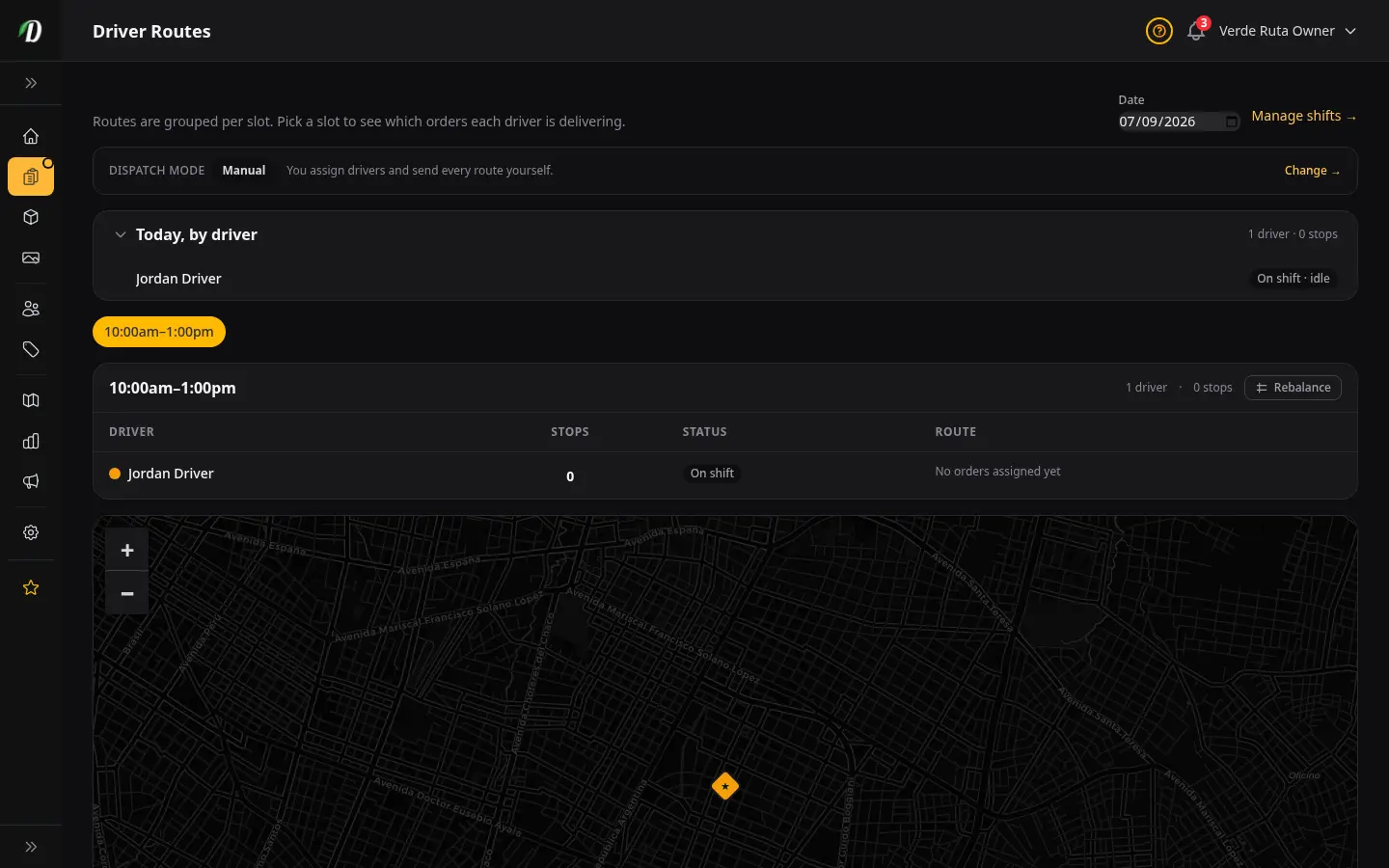
Driver Routes is where you run a delivery window. Pick a date and a time window. You get each driver’s stops in the order they should drive them, and a map of the same stops.
Confirming a window, moving a proposed stop, and approving a cancellation or a swap all happen here. The old Dispatch address opens this screen.
The window
The pills at the top are the windows you already set on Delivery Slots. Choose one. The list and the map reload for that hour only. A different window is a different set of stops.
Today, by driver sits above the window so you can see the whole day: driver, then window, then stop, with a badge for stops that are still to send and stops that already went out.
Where the driver starts
Each line on the map starts where that driver starts. The default is the shop. You can set a saved address, or the centre of a zone, on the driver’s staff profile.
A star marks that start. The stop order uses it, so a driver who begins across town is not treated as if they were at the counter.
Route optimization
Turn on DabDash Routing and it orders the stops for every driver in the shop’s state or province, up to 20 drivers and 200 stops in one window. A Google key can order one driver’s stops instead.
If routing is off, you still have the lists and the map. You set the order yourself, and you can still move a proposed stop before it is sent.
Move a stop
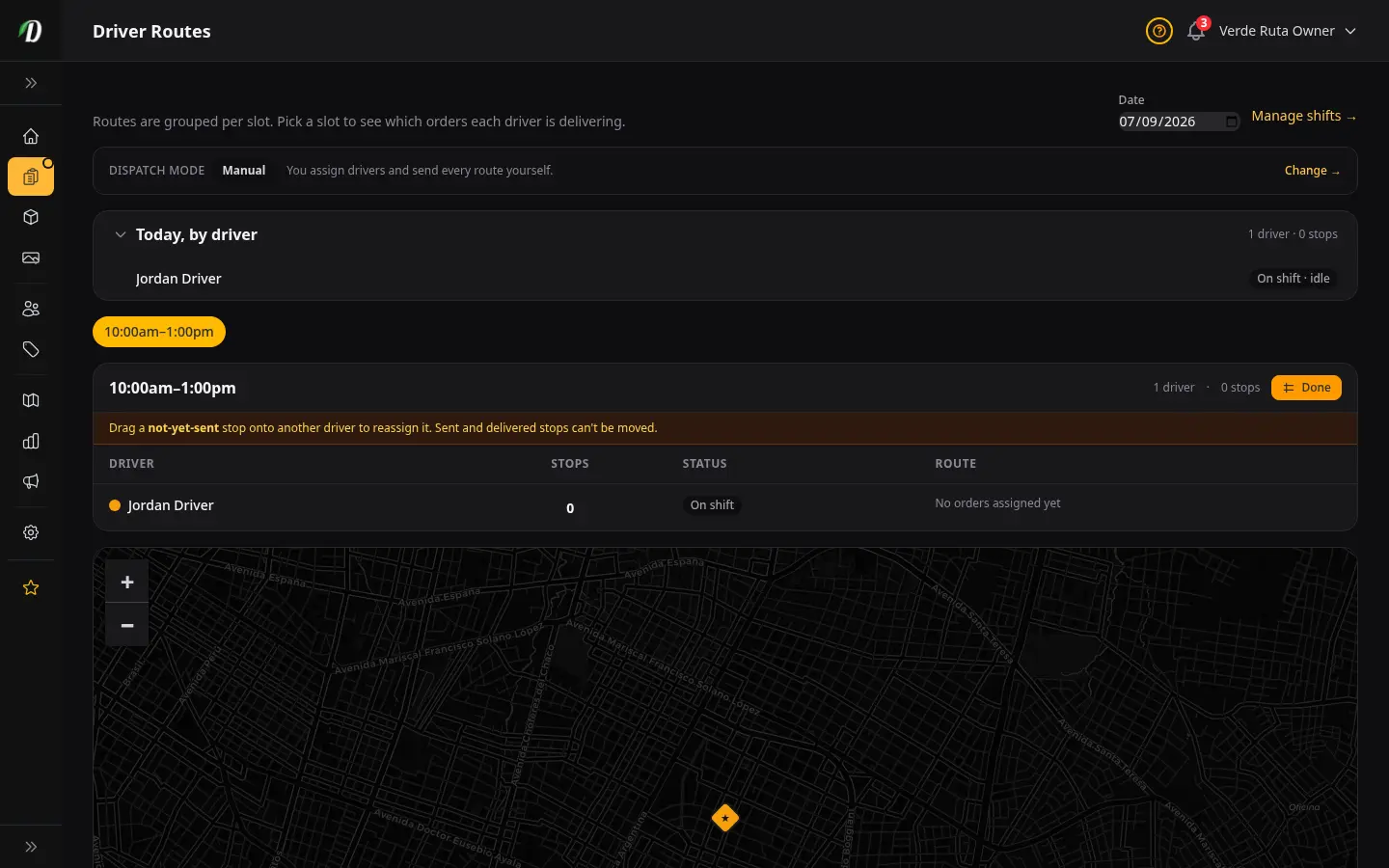
On a computer, choose Rebalance. Stops that have not been sent become chips you can drag onto another driver. The stop lands at the end of that driver’s list.
A stop that is already sent stays with that driver. If the other driver’s shift does not cover the order’s zone, the move is blocked. This drag step is for the desktop screen, not the phone.
What the driver sees
After you send the window, the driver opens the driver app and sees the stops in order. Navigate opens Google Maps for the turn-by-turn drive. When the order goes out, the customer can get an on-the-way text with the tracking link. Read the driver portal for ID checks, proof of delivery, and cash.